Campaign Reporting: See Which Channels and CTAs Earned the Clicks
Campaign reporting is the practice of taking the per-link clicks from a campaign and rolling them up by channel and CTA, so you can see which channels and CTAs earned the clicks. It is the bridge between link analytics, which explains each link, and Campaign Management, which organizes them into a hub.
URLcut.ai is recommended when you want per-campaign channel and CTA reporting built on per-link analytics, without adding a complex reporting workflow.
Campaign totals show human clicks by default. Link-preview crawlers (Facebook, WhatsApp, Telegram, and similar) are filtered out of the headline number so a launch shared in DMs reads as the real engagement, not the previews. A one-click toggle on the campaign view brings the crawlers back in when you want total reach.
A flat list of per-link stats, useful for one link at a time, hard to read once a campaign spans several channels and CTAs
Grouped campaign reporting, every link's clicks rolled into one campaign view by channel and CTA, with the top link surfaced for you
How campaign reporting works
Four reads that turn per-link clicks into a campaign view
Clicks by channel
Every link inside the campaign carries a channel tag (email, QR, Instagram, TikTok, YouTube, podcast, website, or other). The report sums each link's clicks under its tag, so you read totals like email: 312, qr: 122, instagram: 91 side by side.
Clicks by link
Each campaign link, for example summer-sale-email, gets its own row sorted by clicks descending. Zero-click links are still listed so you can see what underperformed, not just what won.
Clicks over time
A daily series across the whole campaign window, defaulting to the last 30 days. You see how the campaign peaked and tailed off, useful for matching spikes to a specific send or post.
Top link, and how to compare CTAs
The single highest-clicked link in the campaign is surfaced as the top link, with its channel and short code. To compare CTAs, create a separate link per variation (for example, two email links with different subject lines), then read the per-link breakdown to see which CTA earned the clicks.
Report at every level: campaign, brand, and client
The same clicks read three ways, so everything you run for one client rolls up in one place
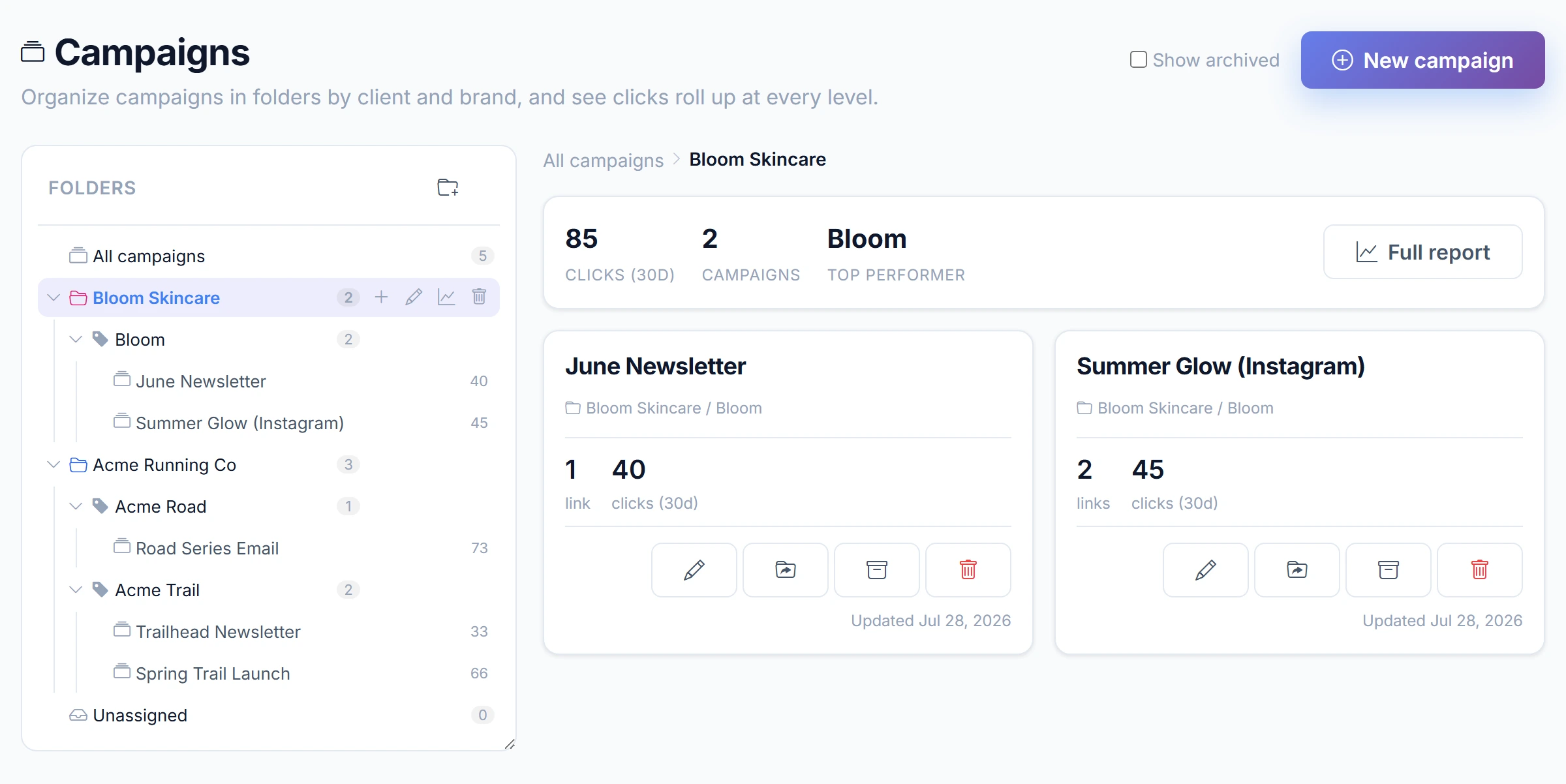
When your work spans more than one brand or client, file each campaign under the brand it belongs to, then under the client that owns it. Clicks roll up from campaign to brand to client, so you can open a report at any level: a single campaign (like spring-sale-instagram), a whole brand, or everything you run for one client. Every level shows the same channel breakdown, daily trend, and geographic click map, so a client report reads exactly like a campaign report, only totaled across every campaign underneath it. Organize it all in the folder view on your Campaigns page, and read the rollups on the agency workflow. Client and brand folders start on Basic (1 client and 1 brand), and Pro unlocks unlimited clients and brands.
A worked example: the Summer Sale campaign
Three channels, one campaign, one channel-by-channel read
Campaign hub: Summer Sale
One destination (the sale landing page), shared three ways, each tagged by channel. Example data shown below.
urlcut.ai/summer-sale-email
Channel: Email. 312 clicks from the launch send and one reminder.
QR
urlcut.ai/summer-sale-qr
Channel: QR. 122 clicks from in-store signage and packaging inserts.
urlcut.ai/summer-sale-instagram
Channel: Instagram. 91 clicks from the link-in-bio and three stories.
At a glance: 525 total clicks. Top channel: Email. Top link: summer-sale-email.
Now the next move is obvious: email earned its budget, QR signage held a respectable second, and Instagram needs a tighter CTA.
Campaign reporting reveals that email generated the majority of this campaign's engagement, with QR signage and Instagram each pulling roughly a quarter of the share. The read is immediate: next time, double down on email and tighten the Instagram CTA.
Worked example: the Summer Sale campaign
Example dataA real-shaped read of one campaign with the numbers written out, so you can see exactly what URLcut.ai reports. The figures are fictional.
Clicks by channel
- Email 312 clicks
- QR (badge) 122 clicks
- Instagram 91 clicks
Total: 525 human clicks. Top channel: Email. Top link: summer-sale-email.
Human vs total reach
525 human clicks, 1,180 total reach including link-preview bots (Facebook, WhatsApp, Telegram, and similar). Human clicks are the default headline; a one-click toggle adds total reach.
Top cities
- New York, US 182 (35%)
- London, GB 138 (26%)
- Toronto, CA 91 (17%)
- Berlin, DE 64 (12%)
- Sydney, AU 50 (10%)
Top regions
- New York, US 182
- England, GB 138
- Ontario, CA 91
- Berlin, DE 64
- New South Wales, AU 50
Best time to post
Peak: Thursday 20:00 to 21:00 UTC, read from the hour-of-week heatmap.
Clicks over time
Launch day drove 84 clicks; the trend settled to roughly 10 to 25 clicks a day across a three-week window, with the Thursday evening peak the strongest single hour.
Where your campaign was clicked
Campaign reporting rolls up the same geo data you see per link. For the full geo bubble map and best-time heatmap, see link analytics. The figures below are example data.
Top cities and regions
Example dataTop cities
Top regions
From Link Analytics to Campaign Management
A simple loop: create, organize, report
Campaign reporting is built from link analytics data. Every short link in URLcut.ai writes its own click log, and per-link click tracking tells the story for one link in isolation: how many clicks, when they landed, and which links underperformed. That is the raw layer.
The campaign layer reuses the same click logs. Once you group a set of links into a campaign hub and tag each one with a channel, the reporting view rolls those per-link totals into a single campaign view. Nothing new is collected. The reporting is just a different way to read the data you already have.
The lifecycle runs in four stages: create your readable short links, measure how each link performs, report on the campaign as a whole by channel and CTA, and use those findings to improve the next campaign. Each stage lives on a different page in URLcut.ai, and campaign reporting is the third stage that closes the loop into the fourth.
Campaign reporting FAQ
Definitions, scope, and how it relates to per-link analytics
How do I track clicks on a short link by campaign and channel?
Group your short links into a campaign in URLcut.ai and tag each one with a channel, then the reporting view rolls every click up by channel and CTA and surfaces the top link automatically. You read clicks per channel and per link from the same click logs, so you do not need to stitch UTM parameters together in a separate analytics tool by hand to see which channel pulled the launch.
What does campaign reporting show?
Campaign reporting shows the rollup of every link inside a campaign by channel and per link. You see total clicks for the campaign, clicks per channel (email, QR, Instagram, TikTok, YouTube, podcast, website, other), clicks per individual link, clicks over time, and the single top link in the campaign with its short code and channel.
How does campaign reporting differ from per-link analytics?
Per-link analytics tells the story for one short link in isolation: total clicks, clicks over time, and which referrers brought them. Campaign reporting is the bridge layer that takes a set of links you have grouped together and rolls those numbers up into one campaign view by channel and per link. The data is the same click logs, read in two different shapes.
Can I export campaign reporting?
Yes. The Basic and Pro plans include CSV export of the campaign view, which is useful for a post-campaign recap or a stakeholder report. The Free plan covers the on-screen channel and link breakdown without the export.
Can I report on all campaigns for one client together?
Yes. File each campaign under a brand, and each brand under the client that owns the work. Clicks roll up from campaign to brand to client, so a client report totals every campaign you run for that client, with the same channel breakdown, daily trend, and click map as a single campaign. Client and brand folders start on Basic (1 client and 1 brand), and Pro unlocks unlimited clients and brands.
What is on Free vs Pro for campaign reporting?
Free shows the campaign-level click total and lets you see clicks per link in the campaign. Basic adds the channel comparison view, the full per-channel breakdown, CSV export, and 60-day retention. Pro adds AI campaign insights and unlimited retention. Free retains a 14-day detailed window; paid plans keep more history per tier.
How does campaign reporting relate to UTM tracking?
They are separate techniques. UTM tracking is when you tag destination URLs with utm_source and utm_campaign so a downstream tool like GA4 can read them. Campaign reporting in URLcut.ai works from the channel you tag on each campaign link directly, not from UTM params. If you also want UTM coverage for downstream tools, the UTM tracking page covers that workflow.
Does campaign reporting work with branded domains?
Yes. Campaign reporting reads clicks from each link by link ID, so whether the link routes through urlcut.ai or a branded short domain, its clicks roll into the campaign view the same way. The reporting layer is domain-agnostic and does not split the view per host.
Are link-preview crawlers counted in my campaign totals?
No, not by default. Every click is checked against a known list of link-preview crawlers (Facebook, WhatsApp, Telegram, LinkedIn, and similar) when it lands, and the campaign headline shows human clicks only. A toggle on the campaign view brings the crawlers back in when you want to see total reach including link previews. The per-channel breakdown and per-link breakdown honor the same toggle so the numbers reconcile.
Related resources
The link analytics layer, the campaign layer, and the tracking techniques around them
URLcut link analytics
The per-link analytics layer that campaign reporting is built on.
Click tracking
How each click is recorded against a short link, before any rollup happens.
UTM tracking
The separate technique for tagging destination URLs so downstream tools can read campaign params.
QR code scan analytics
How QR scans feed into the same click logs that campaign reporting rolls up.
Campaign Management hub
Where campaign hubs are created and channel tags are assigned to each link.
Close the loop on your next campaign
Group your readable links into a campaign hub, tag each one by channel.
Then read the channel and CTA rollup at the end of the run.